Use cases · 4 min read
Turn a pitch or lesson into a visual presentation
Turn a pitch, lesson, or explainer into an illustrated sequence people click through: plan the beats, set up the brief, and share it as a link.
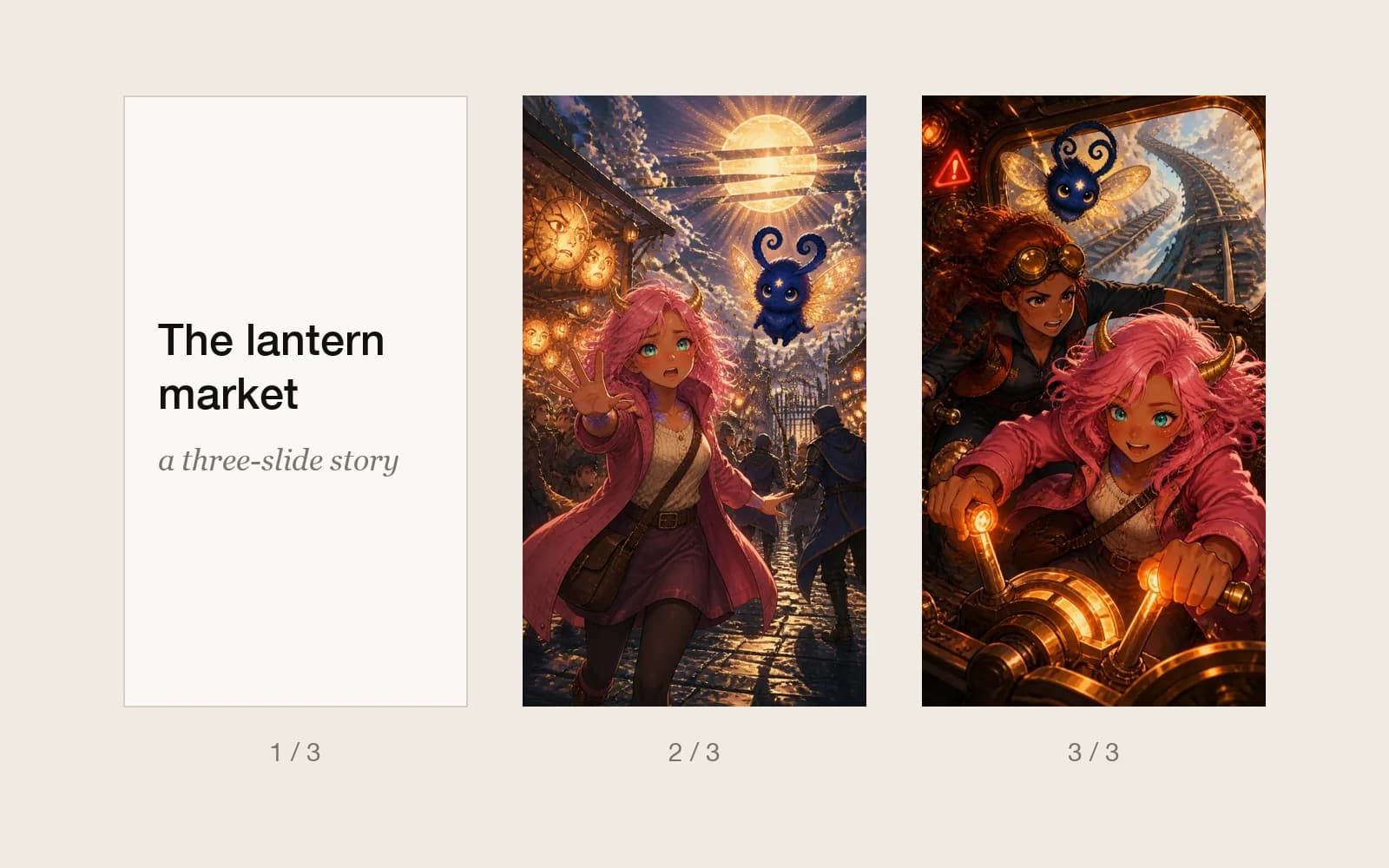
Slides are good at lists and charts. They are weak at the thing that persuades people most: a situation they can picture. A visual presentation in Pominis tells an argument as a short sequence of illustrated scenes, one idea per screen, that the audience clicks through at their own pace or that you step through in a room.
The worked example is invented: a volunteer who wants the city council to fund a neighborhood tool library, a room where residents borrow drills, ladders, and sewing machines instead of buying them. She has five minutes at a council meeting and a link she can send afterwards.
When a visual presentation beats slides
- A pitch that depends on the audience imagining a place or a person.
- A lesson that follows a process or a sequence of events.
- An explainer or product story you want people to open on their phones.
- A storyboard for a script, ad, or short film, where each beat needs a frame.
If the content is a table of numbers, keep the slides. A presentation built from scenes works when each point can be shown as something happening.
Plan it as beats, not bullet points
Write one sentence per screen, then check that each sentence is something you could draw. For the tool library, the first draft of the pitch was a list: cost savings, sustainability, community. None of those is a picture. The rewrite follows one resident:
- Hook: a hallway closet stacked with a drill used once, a ladder, and a broken sewing machine.
- Problem: the same closet repeated in every flat on the street.
- A person: Mr. Osei, who needs a ladder for one afternoon and cannot store one.
- The turn: a small room at the library with labeled shelves and a sign-out sheet.
- The result: Mr. Osei returning the ladder, and a neighbor waiting to borrow it next.
- The ask: one room, one part-time coordinator, a six-month trial.
Six beats is a good length for five minutes. A lesson works the same way. A teacher explaining how a medieval town survived a winter might use the harvest, the storehouse, the first snow, the ration list, a thaw, and a question for the class.
Set up the startup brief
In VN Studio, paste the beats into your first message and say what it is for: “A six-screen visual presentation pitching a neighborhood tool library to a city council. Warm, practical, illustrated. One recurring character, Mr. Osei.” In the startup brief, choose Visual presentation as the creation format.
That choice sets the shape for you. The length is fixed to Short and the flow structure to Single route, so the agent builds a concise, usually linear sequence rather than a branching story. The canvas target defaults to Mobile portrait, which suits a link people open on their phones. If you will present on a projector, switch the canvas target to PC landscape before generating.
Keep the words short and the pictures specific
Each screen has an image and a few lines of text. Treat the text as a caption, not a script: one or two short lines that say what the picture cannot, such as a number, a name, or the ask. If you will be speaking over it, keep even less on screen and let the image hold the room.
Be specific about images in the prompt. “A community space” produces something generic. “A narrow room with pegboard walls, a ladder, a drill, and a sewing machine, each on a labeled hook, afternoon light” produces the screen you need. If Mr. Osei appears in several scenes, the agent creates him once and reuses his portrait, so he looks the same on every screen.
Add motion where it helps
Most screens can stay still. For one or two, a Scene Motion effect such as Slow push-in adds emphasis without distraction; the closet in the hook is a good candidate. Save a short scene video, which spends more credits, for the one moment you want people to remember, such as the ladder changing hands.
Play it, then share it
Use Play draft and click through the whole sequence at the speed you will present it. If a screen needs you to explain it, the image or the caption is wrong. Then publish. Public and private publishing are free; an unlisted link, which only people you send it to can find, needs a paid plan. After the council meeting, the volunteer sends the link to every member, and it plays in a browser with nothing to install.